


-
Inserting nanoCAD tables into the drawing according to GOST/DSTU/STB or from a specified file
Call options
- ModPlus floating menu or palette
- Menu, toolbar, or ribbon in nanoCAD
- Command line: _mncTables
Icon


Using
ModPlus tables
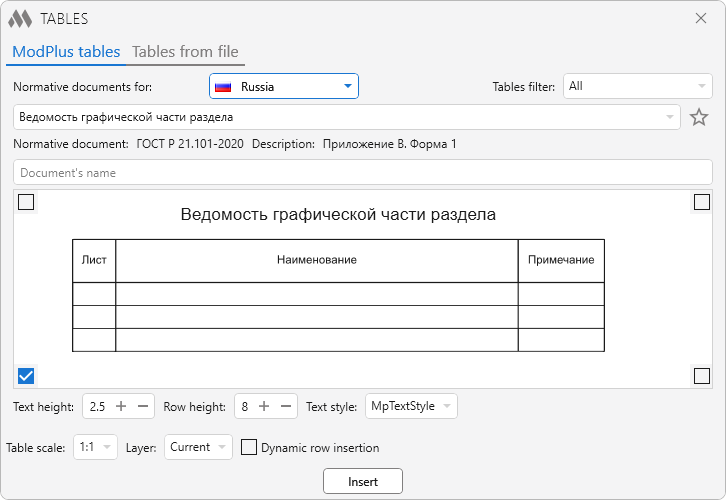
Normative documents for: – drop-down list for selecting a country, according to the norms of which lists of tables and normative documents will be filled.
Weed of normative document – drop-down list for selecting a filtering option, according to which a table selection list will be filled.
.png) – allows you to add/remove a table from your favorites list.
– allows you to add/remove a table from your favorites list.Normative document – field that displays the name of the normative document containing the selected table.
Description – contains a description of the location of the table in the normative document.
Below is the field for previewing the selected table. The image can be scaled by scrolling the mouse wheel, moved with the left mouse button held down, and fit within the field boundaries with the right mouse button. In the corners of the field are located radio buttons that determine the point of reference of the table when it is inserted into the drawing.
The group Table settings contains the following settings:
Text height – specifies the height of the text in the lines. Ignores the height in the title and header of the table.
Row height – set rows height. Ignores the height in the title and header of the table.
Text style – drop-down list containing all the text styles in the drawing. The text style applies to the entire table
Tables from file
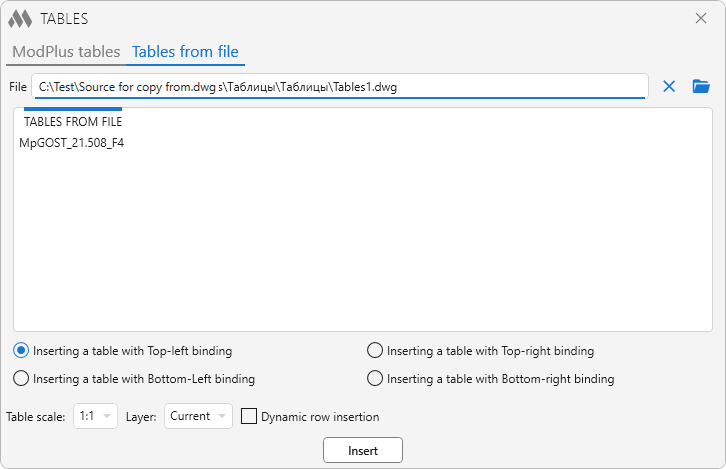
File – the output field of the path to the file from which you want to insert the table. This value is saved in the configuration file.
 – clear the path to the file (clear the field File).
 – specify the path to the file.
Tables from file – list of tables (table styles) in the specified file.
Inserting a table with Top-left/Bottom-left/Top-right/Bottom-right – the table anchor point when it is inserted into the drawing.
Table scale – drop-down list of annotation scales contained in the drawing.
Layer – drop-down list of layers contained in the drawing.
Dynamic row insertion – enable/disable the ability to dynamically insert rows (see below)
Insert – go to nanoCAD to insert a table:
Insertion point: – specify the insertion point.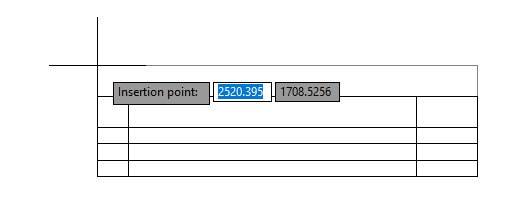
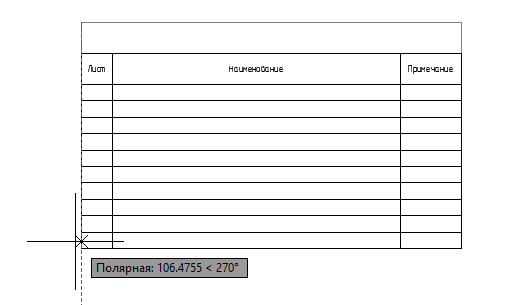
Specify second point: (when Dynamic row insertion is on) – specify a point. The number of rows of the inserted table will change.
-