Inserting title blocks in the drawing as nanoCAD tables according to normative documentation, with field support
Call options
- ModPlus floating menu or palette
- Menu, toolbar, or ribbon in nanoCAD
- Command line: _mncStamps; _mncStampFields
Icon
Using
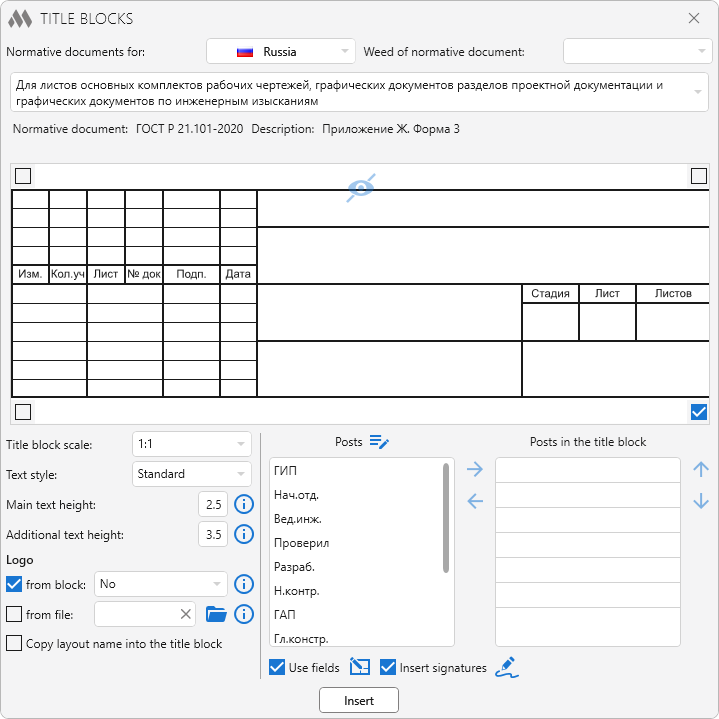
Normative documents for – drop-down list to select a country, according to the norms of which lists of title blocks and regulatory documents will be filled.
Weed of normative document – drop-down list to select the regulatory document, which will be completed according to the title block selection list.
Normative document – field displaying the name of the regulatory document containing the selected title block.
Description – contains a description of the location of the title block in the regulatory document.
Below is a field for previewing the selected title block. The image can be scaled by scrolling the mouse wheel, moved with the left mouse button held down, and fit within the field boundaries with the right mouse button. At the corners of the field are radio buttons that determine the point of attachment of the title block when it is inserted into the drawing.
Group title block setting contains the following settings:
Title block scale – drop-down list of annotation scales contained in the drawing.
Text style – drop-down list containing all text drawing styles. The text style applies to the entire title block.
Main text height – text height, which is set for all title block cells after it is inserted. By default 2.5, which corresponds to ESKD GOST 2.304-81 "Drawing fonts".
Additional text height – text height, which is set in some cells of the title block ("Sheet", "Stage", etc.) after its insertion. By default 3.5, which corresponds to ESKD GOST 2.304-81 "Drawing fonts".
Logo from block – adding to the title block a logo from the specified block defined in the current drawing.
Logo from file – adding to the current drawing of the specified dwg-file in the form of a block, followed by adding to the title block as a logo. The file name is used as the block name. If the current drawing already contains a block with the same name, then the block from the drawing will be inserted into the title block.
Posts – list of available posts.
 – opens the dialog for editing user posts (see below).
Posts in the title block – posts added to selected title block.
 – moves the selected position from the list of available to the added to the title block.
 – moves the selected position from the list of added posts to the list of available posts.
 – move the selected position in the list of positions added to the title block one position up.
 – move the selected position in the list of positions added to the title block one position down.
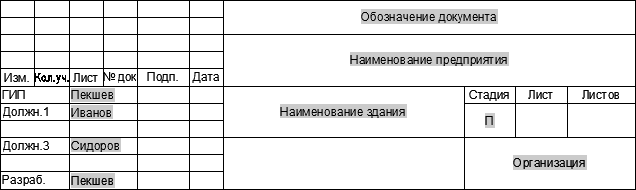
Use fields – adding to the title block (if the title block supports) values in the form of fields. To set the fields, use the plugin Fields (see below).
Insert signatures – inserting blocks of signatures into the title block. Use the Signatures plugin to customize signatures (see below).
 – starting the Fields plugin.
 – starting the Signatures plugin.
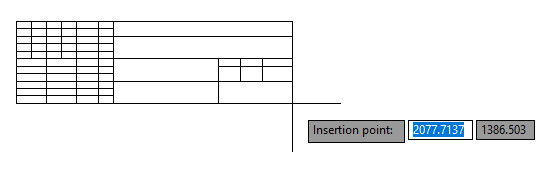
Insert – go to nanoCAD to select a title block insertion point:
Insertion point: – specify the insertion point.
The Fields plugin is an nanoCAD function and can be called from the command line, just like any other functions: _mncStampFields
In the upper right corner of the window there is a drop-down list for selecting a country, according to the norms of which the fields should be filled.
Regardless of the country, fields in the drawing are created using the same keys. Those. In the current drawing, you can add fields according to the regulations of only one country.
The main function window contains several tabs – a tab for filling in the names and a tab for filling the title block title block in accordance with GOST/DSTU/STB.
Surnames tab contains two tab:
Standard – contains text fields to which the names should be entered according to the position (positions according to GOST/DSTU/STB):
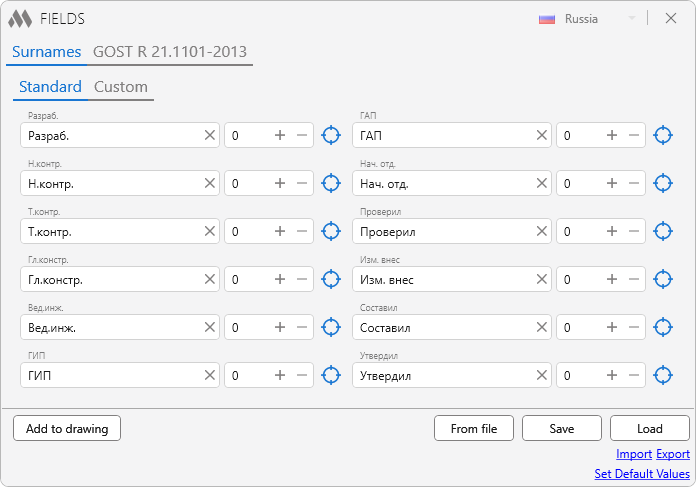
Custom – contains text fields in which names should be entered according to the position (user list of positions):
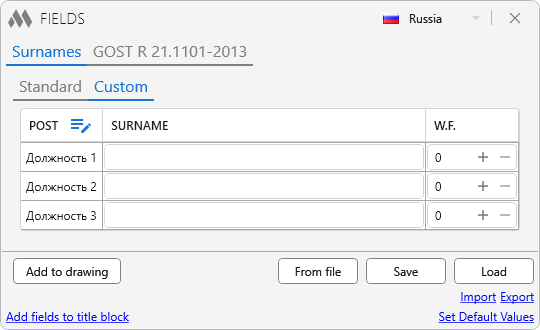
– opens the dialog for editing user posts (see below).
Tabs GOST/DSTU/STB ... (value varies with country) contain title block columns according to GOST/DSTU/STB. It may contain internal tabs indicating the location of the graph in GOST/DSTU/STB. When you hover the cursor over any of the graphs, a hint will appear, containing a description of the column according to GOST/DSTU/STB.
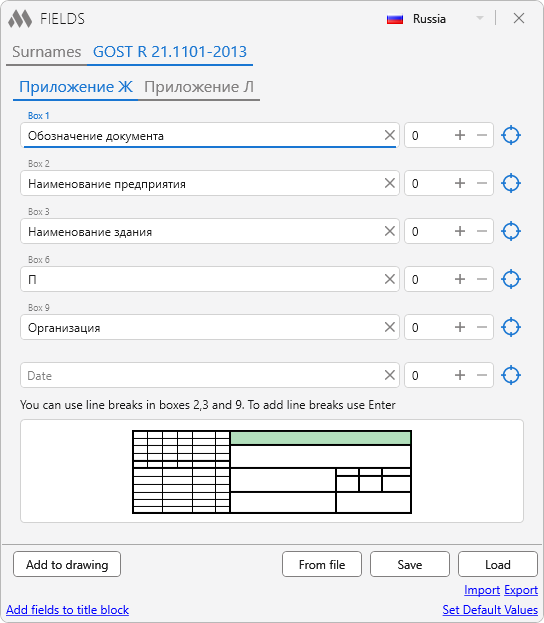
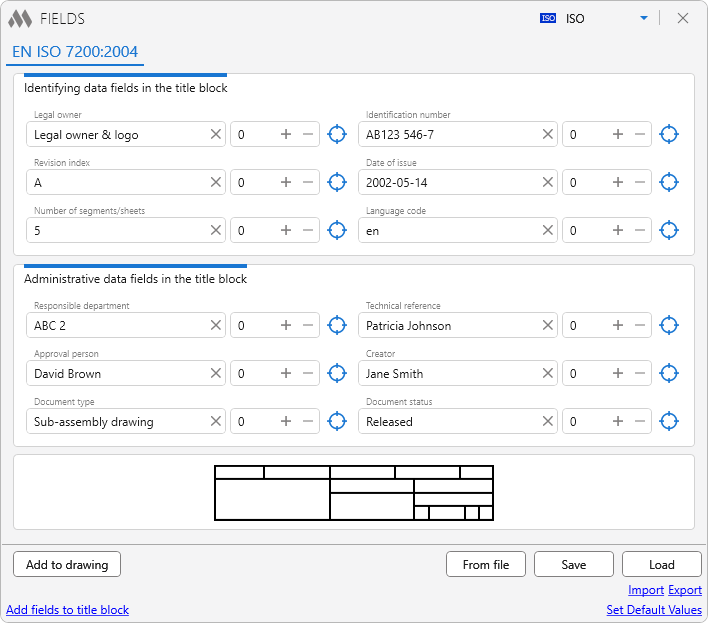
Add to drawing – add filled text fields to the active nanoCAD document as additional drawing properties.
Add fields to title block – move to nanoCAD to select a title block
Select title block: – select title block.
Save – saving the entered values to the settings file for the possibility of subsequent loading of these values in another drawing.
Load – load previously saved values.
Import – import of filled field values into xml file.
Export – filling in field values from the specified xml file.
Set Default Values – load default values.
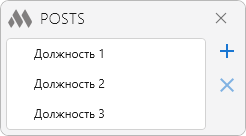
 |
– adding a new line to the list. |
|
– remove selected row from list. |
The Signatures plugin is an nanoCAD plugin and can be called from the command line, just like any other functions: _mncSignatures.
The plugin supports preselection: if you select a table (title block) before starting the plugin, then signatures will be inserted into this table.
The plugin inserts a block with a signature at the bottom left point of the cell, which is located to the right of the cell with the surname. The plugin works on the basis of the contents of the table and is not tied only to ModPlus tables (title blocks). The scale of the table is not taken into account!
Signature block is inserted over the table (title block) to the coordinates of the cell and has no connection with the table!
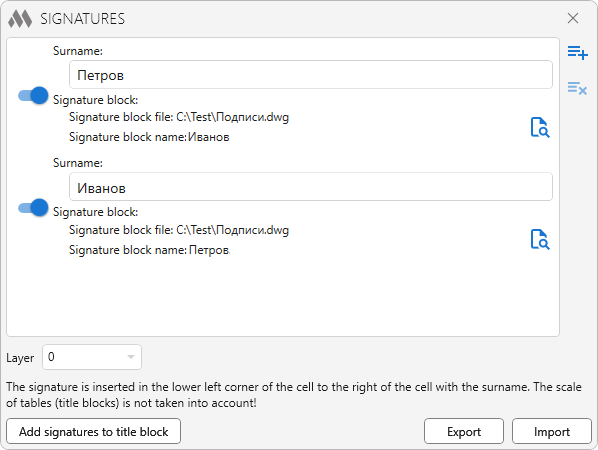
The plugin window consists of a list of positions that define the relationship between the surname and the inserted signature block. Positions can be disabled without deleting them from the list.
In the free version of the plugin, only three positions can be created.
From the drop-down list, you can select the Layer in which the signatures will be placed.
Add signatures to title block – closes the plugin window and proceeds to select a title block for inserting signatures.
Export – export list of positions to xml file.
Import – import list of positions from an xml file. Removes the current list!


