


Assemble multileader

| Name | Discount | Total value of individual orders | Total value of corporate orders |
|---|---|---|---|
| Regular user | 0% | ||
| 3% discount | 3% | $84 | $180 |
| 5% discount | 5% | $120 | $360 |
| 7% discount | 7% | $180 | $600 |
| 10% discount | 10% | $300 | $900 |
| 15% discount | 15% | $360 | $1 200 |
| Partners | 30% | ||
| BIM Consulting | 50% | ||
| Super VIP | 100% |
Builds multileaders from lines, polylines and text
Launch Options
- ModPlus floating menu or palette
- AutoCAD ribbon
- Command line: _mpLeaderFromEntities
Icon


Related News and Articles
Using
After starting the plugin, the settings window opens:
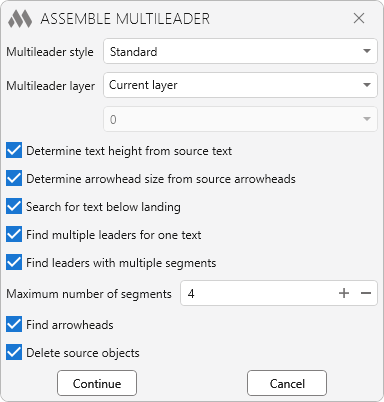
Multileader style – the style assigned to the multileaders being created.
Multileader layer – determines the layer on which the multileaders will be created:
- Leader layer – uses the layer of the source leader lines
- Text layer – uses the layer of the source text
- Current layer – uses the current drawing layer
- Specified layer – uses a layer selected by the user. When this option is selected, a drop-down list of layers from the current document becomes available below.
Determine text height from source text – uses the height of the source text for the text of the multileader being created.
Determine arrowhead size from source arrowheads – uses the size of the source arrowheads for the arrowheads of the multileader being created.
Search for text below landing – includes text located below the leader landing when searching for text.
Find multiple leaders for one text – allows a multileader with multiple leaders associated with the same text to be created.
Find leaders with multiple segments – includes leaders consisting of multiple segments in the search.
Maximum number of segments – specifies the maximum number of segments considered when searching for leaders. This setting is used when Find leaders with multiple segments is enabled.
Find arrowheads – includes source leader arrowheads when assembling multileaders.
Delete source objects – after creating a multileader, deletes only the source objects that were included in the created multileader.
Continue – proceeds to selecting objects for assembling multileaders.
Cancel – ends the plugin operation.
After clicking Continue, select the objects from which the multileaders will be assembled:
Select objects to assemble multileaders – selects the source objects to be processed.
The plugin operates in a loop: after processing the selected objects, it prompts you to select objects again.
While selecting objects, the Settings option is available in the command line, allowing you to reopen the settings window and modify the parameters for subsequent processing.
To finish running the plugin, press Esc.

 YouTube