


-
A set of tools for working with polylines
Call options
- ModPlus floating menu or palette
- Menu, toolbar, or ribbon in nanoCAD
- Command line: _mncPlinesEdit
Icon


Using
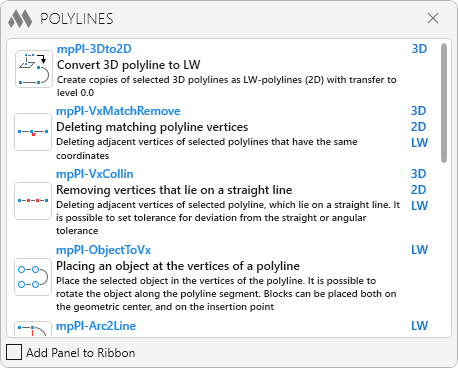
The main window is a list of plugins. Each item in the list displays the plugin icon, plugin name (can be used for invocation from command line), a short and complete description and types of polylines the plugin works with (3D-polyline, 2D-polyline or LW-polyline).
Add Panel to Ribbon – add/remove the Polyline panel on the ModPlus tab in the AutoCAD ribbon.
mncPl-3Dto2D – convert 3D polyline to LW


Create copies of selected 3D polylines as LW-polylines (2D) with transfer to level 0.0.
Select 3D polylines: – select one or more 3D polylines to create 2D copies. Selected polylines will be deleted.
mncPl-VxMatchRemove – deleting matching polyline vertices


Deleting adjacent vertices of selected polylines that have the same coordinates.
Select polylines: – select one or more polylines. The plugin works with all kinds of polyline (3D, 2D, LW).
mncPl-VxCollin – removing vertices that lie on a straight line


Deleting adjacent vertices of selected polyline, which lie on a straight line. It is possible to set tolerance for deviation from the straight or angular tolerance.
Select polylines or: [Tolerances]: – select one or more polylines. The plugin works with all kinds of polyline (3D, 2D, LW).
Tolerances:
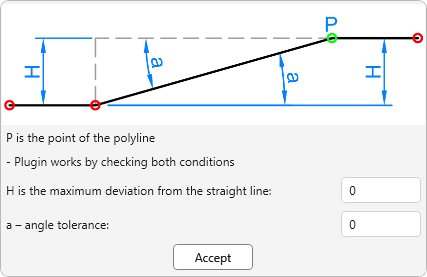
In this window you can specify the tolerance for the maximum deviation from the straight and angular tolerance. The default value is 0.0. The plugin works with checking for both conditions (i.e. if at least one condition is suitable, then the vertex will be deleted).
mncPl-ObjectToVx – placing an object at the vertices of a polyline


Place the selected object in the vertices of the polyline. It is possible to rotate the object along the polyline segment. Blocks can be placed both on the geometric center, and on the insertion point.
Select polyline: – select one polyline. The plugin works with a simple ("light") polyline (LW).
Select an object to place: – select any one drawing object.
Next, the plugin settings window appears:
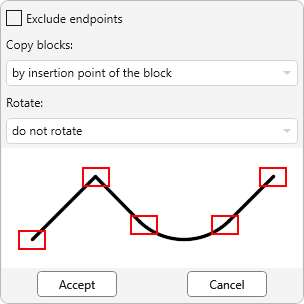
Exclude endpoints – exception of the first and last vertices of the polyline.
Copy blocks – option to snap blocks to the vertices of the polyline: at the geometric center or at the insertion point.
Rotate – option to rotate the object at the top of the polyline.
mncPl-Arc2Line – replacing an arc segment with linear


Replacing the specified arc segment of the polyline with a linear one (replacing the arc with a segment).
Select an arc segment of the polyline: – select a polyline segment that is an arc. The plugin works with a simple ("light") polyline (LW).
The plugin works cyclically until the user interrupts. When you hover over the arc segment of the polyline, auxiliary geometry for previewing the result is built.
mncPl-Line2Arc – replacing an linear segment with arc


Replacing the specified linear (or arc) segment of the polyline with an arc. It is possible to construct an arc along a tangent or a point on an arc.
Select the polyline segment: – choosing a polyline segment, both linear and arc. The plugin works with a simple ("light") polyline (LW).
mncPl-AddVertex – dynamically adding a vertex


Dynamically adding a vertex to the specified polyline.
Select polyline: – select the polyline for which you want to add a vertex (s). The plugin works with a simple ("light") polyline (LW).
Specify the point (hold Ctrl to move the vertex forward): – indication of a point in space. A new vertex will be added to this point.
mncPl-Rect3Pt – drawing a rectangle by three points


Drawing a rectangle by three points.
Specify first point: – specify the first point of the rectangle.
Specify second point: – specify the second point of the rectangle.
Specify third point: – specify the third point of the rectangle.
mncPl-NoArc – removing Arc Segments from a Polyline


Remove polyline arc segments by replacing them with linear segments. There are several options for the plugin: the number of segments, the length of segments, the height of segments (chord deviation), the length of the chord.
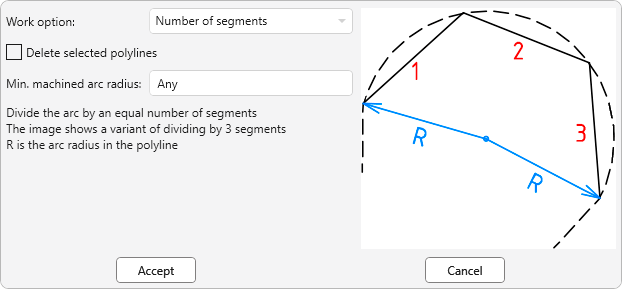
Work option – the choice of work option. At the same time, the prompt picture will change on the right side, and at the bottom of the picture explanation.
Delete selected polylines – removing the source polyline. When the plugin works, a new polyline is created.
Min. machined arc radius – setting the minimum arc radius to be processed by the plugin.
Accept – go to polyline selection:
Select polylines: –select one or more polylines in which you want to delete arc segments.
Cancel – cancel plugin.
mncPl-MiddleLine – building the middle line


The construction of a middle line (as polyline) between two specified curves (segments, polylines or splines).
Select first support element (line, polyline or spline): – selection of the first support element.
Select second support element (line, polyline or spline): – the choice of the second support element.
Number of control points <100>: – indication of the number of control points. The larger the quantity, the more accurate the midline. Possible values from 2 to 1000 points.
Simplify polyline? [Yes/No]: – if Yes is selected, points lying on the same straight line will be removed.
mncPl-MoveVertices – fast moving of vertexes


Fast moving of vertexes of the specified polyline.
Select polyline: – select the polyline for which you want to move a vertex (s). The plugin works with a simple ("light") polyline (LW).
Specify the point (hold Ctrl to move the vertex forward): – specify the point of the polyline to move.
The plugin works cyclically until the user interrupts.
mncPl-DivideOnIntersection – split curve at intersection points


Split curve (segmennt, polyline or spline) at intersection points with other drawing objects.
Select one or more curves (line, polyline, arc, spline, or circle): – selection of one or more curves to be split.
Select objects for intersection calculation or leave the selection empty to calculate for all objects: – select objects intersected by the selected curves. If no objects are selected, the calculation is performed for all available objects.
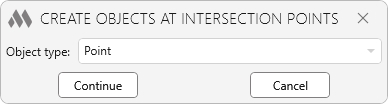
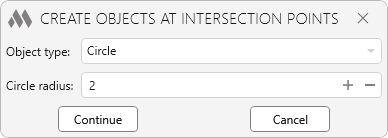
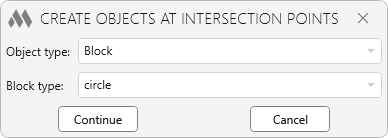
mncPl-CreateObjectsOnIntersection – сreate objects at intersection points


Creates objects at the intersection points of the selected curves with specified objects.
The following types of created objects are supported:
- Point
- Circle
- Block
Select one or more curves (line, polyline, arc, spline, or circle): – select one or more curves at whose intersection points the objects will be created.
Select objects for intersection calculation or leave the selection empty to calculate for all objects: – select objects intersected by the selected curves. If no objects are selected, the calculation is performed for all available objects.
mncPl-CreateRectangleByManyPoints – dividing a curve at intersection points


Creates a quadrilateral based on two or more points. The sides of the quadrilateral are aligned according to the current coordinate system. An angular tolerance can be specified, allowing the sides to capture a larger number of points.
Select points or: [TOLerances]: – select two or more points to construct the quadrilateral.
Tolerances:
Enter angular tolerance from 0 to 30 – specify the angular tolerance value. Default value is 0.
-