Control visibility of various objects and elements on selected views
Icon
Related news and articles
UsING
The plugin allows you to manage the visibility of various objects and elements on selected views using a floating panel.
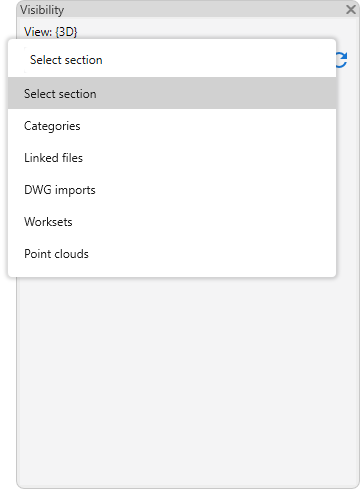
The plugin is activated by selecting one of the sections from the dropdown list:
- Categories
- Linked files
- DWG imports
- Worksets
- Point clouds.
To the right of the drop-down list are buttons for refreshing data  and opening the plugin settings window
  :
:
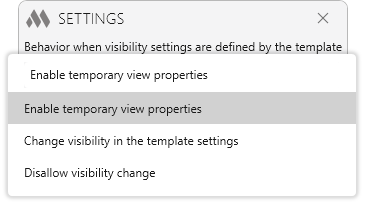
Behavior when visibility settings are defined by the template – defines how the plugin handles element visibility if the current view parameters are controlled by a view template. The following options are available:
- Enable temporary view properties – the plugin automatically enables temporary view properties and applies changes only to the current view without modifying the template.
- Change visibility in the template settings – changes will be applied directly to the view template controlling the current view.
- Disallow visibility change – if a view template is assigned, the plugin will not perform visibility changes.
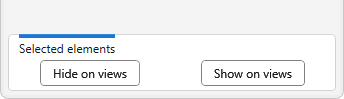
When selecting elements in the model, the commands Hide on views and Show on views become available at the bottom of the panel, allowing you to control the visibility of selected elements on specified views.
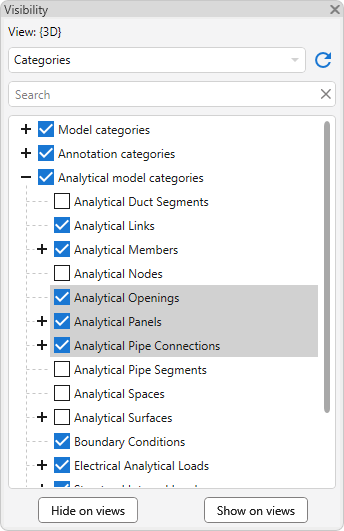
The section contains a list of all project categories grouped by type: model categories, annotation categories, and analytical model categories.
The checkbox states correspond to the visibility settings of the current view (similar to the "Visibility/Graphics Overrides" dialog).
When selecting one or more categories, the commands Hide on views and Show on views become available at the bottom of the panel. They allow batch modification of the visibility of the selected categories on specified views.
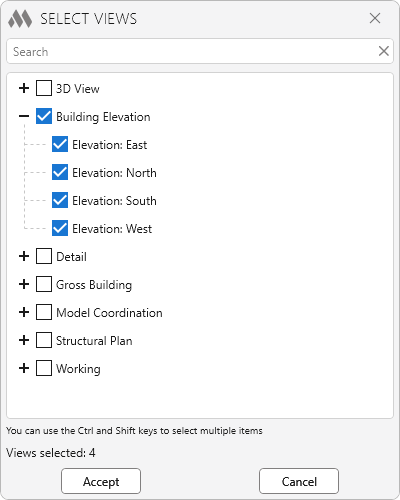
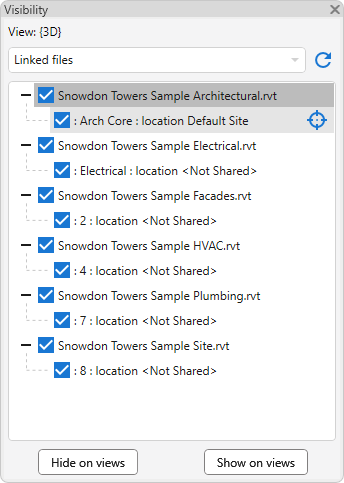
The section contains a list of linked project models. When hovering over a link, the button for selecting the element in the model becomes available  .
.
When selecting one or more links, the commands Hide on views and Show on views are available for batch control of their visibility on specified views.
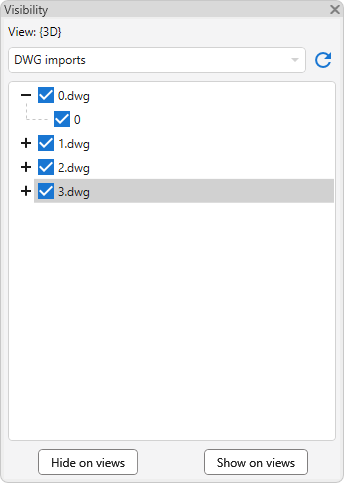
The section contains a list of linked and imported DWG files.
When selecting one or more imports, the commands Hide on views and Show on views are available for batch control of their visibility on specified views.
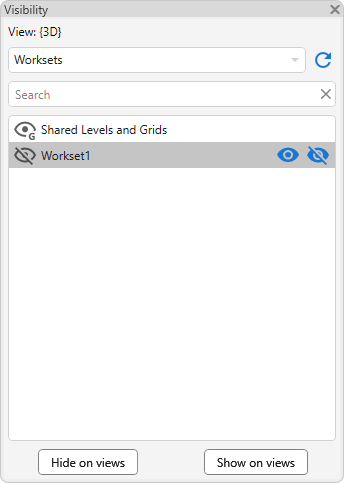
The section contains a list of project worksets. When hovering over a workset, buttons become available to show  and hide
  the selected worksets on the current view.
When selecting one or more worksets, the commands Hide on views and Show on views are available for batch control of their visibility on specified views.
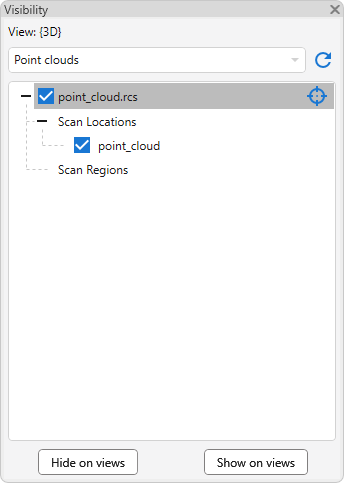
The section contains a list of project point clouds. When hovering over an item, the button for selecting it in the model becomes available .
When selecting one or more items in the list, the commands Hide on views and Show on views are available for batch control of their visibility on specified views.


